Put new submissions where your team already works
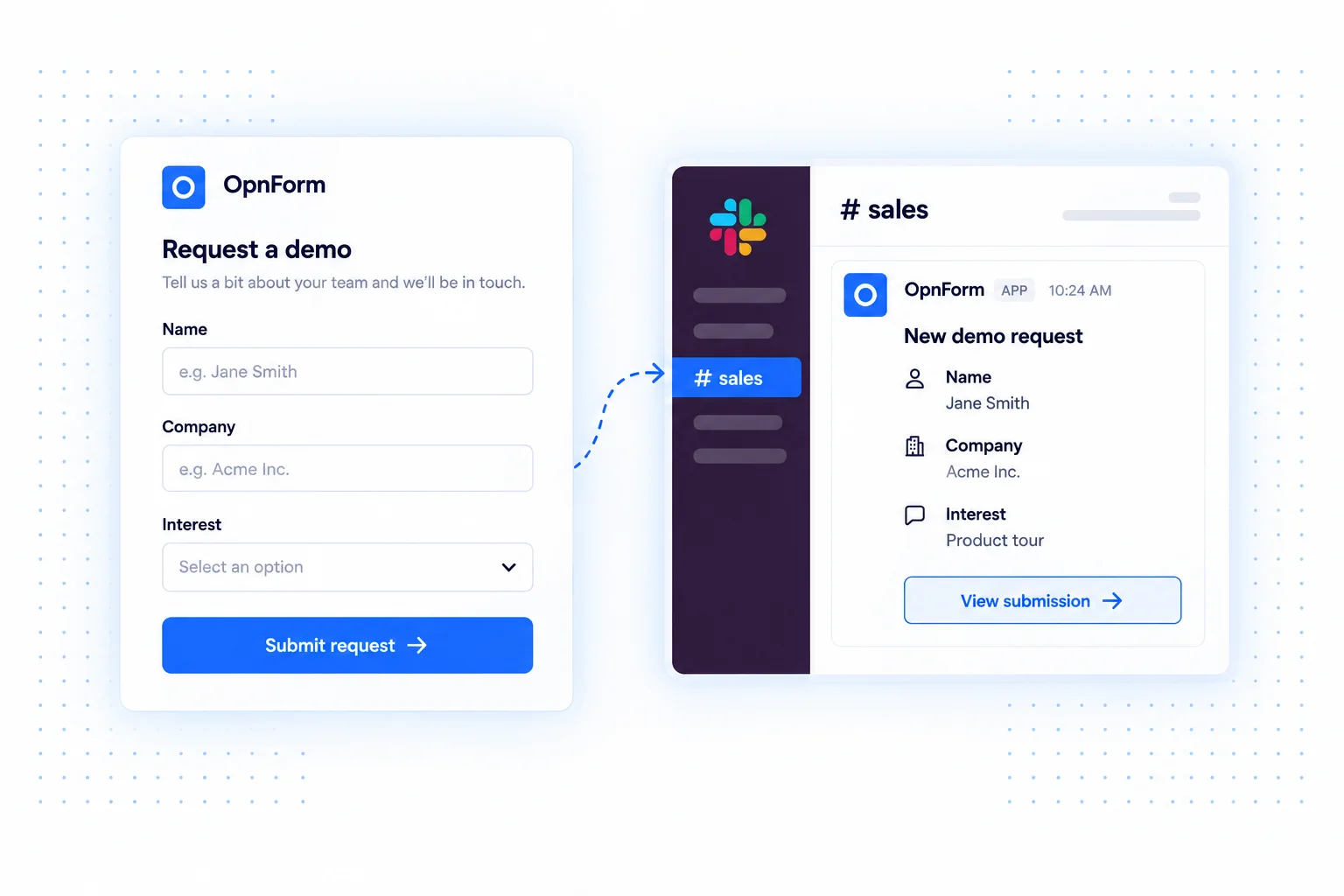
Connect OpnForm to a Slack channel and make incoming requests visible alongside the conversations they start. A submission notification gives teammates a shared starting point for discussing a lead, reviewing an application, or assigning the next action.
The connection uses a Slack incoming webhook. The webhook determines the destination channel; you paste its URL into OpnForm and configure the notification content in your form's integration settings.
Slack integration use cases
Share demo requests with sales
Send new demo inquiries to a sales channel with the company name, contact information, and request. Teammates can coordinate follow-up in Slack without forwarding the same email around.
Coordinate operational requests
Bring office requests, supplier inquiries, or incident reports into the channel where the responsible team works. Include a concise description so people can assess the request before opening the full submission.
Review applications together
Post volunteer or community applications to a private review channel. The notification starts the discussion; your team still decides who should review the application and how to respond.
Set up Slack notifications
- Create an incoming webhook for the destination channel in your Slack workspace, with the permissions required by your workspace.
- Open the form's Integrations tab and add Slack Notification.
- Paste the webhook URL into Slack webhook url and configure the available message options.
- Save the integration and submit a sample response. Check that the message appears in the intended channel.
Keep the channel useful
Choose a channel with a clear owner, and include only the fields that help that team act. Avoid sending confidential responses to broad public channels. If the notification volume grows, use a dedicated intake channel and agree on a follow-up process.
Common questions
Does OpnForm choose the Slack channel?
The destination is associated with the Slack incoming webhook you configure. Use the webhook for the channel that should receive the alerts.
Does a notification automatically assign the request?
The Slack integration sends a message. Assignment and follow-up remain part of your team's process. Use an automation platform such as Zapier if you also need actions in a CRM or project tool.
Prefer mobile chat alerts? Explore Telegram.